HOME PAGE                 iVI                 iOS APPS                 CONTACT                 SUPPORT    
![]() |
Product | Current Version | Available Where? | |
|---|---|---|---|
iVI Pro | 3.2 (with DVD Import) | South Pole Store | |
iVI | 3.2 (no DVD Import) | Mac App Store |
Learning how to use iVI? Please take a look at our screencasts.
- What is the difference between iVI and iVI Pro?
- I'm Having Trouble Entering my License Number or Activating iVI..
- I can't find the license manager...
- How Do I Convert a File with iVI using Drag and Drop?
- What do the icons mean in the iVI main window?
- How do I import a DVD using iVI? (I've tried dropping a VIDEO_TS but it doesn't work)
- How can I change audio tracks or subtitles on my iPad or iPhone?
- How does PASS THRU/FAST mode work?
- Can iVI import SRT files automatically?
- How do I add metadata to files I've already converted without converting them again?
- How can I get the best quality when I use iVI to convert files for Video Editing?
- How can I import video into iMovie?
- Can I reorder the conversion Queue?
- How does iVI determine the file type?
- What is a Video Source?
- How can I join parts of a video together?
- What is the difference between the Video Quality choices in iVI?
- What's the real technical difference between Normal, High and Highest as conversion quality settings?
- I don't allow iTunes to copy files to its media folder and use my own folders instead. How can iVI work for me?
- Using custom locations for files after conversion and other Applescript Post Processing
- How can I see Actor, Producer, Director and Full Description for a show in iTunes?
- Why can't I turn off a DVD subtitle?
- I'm dropping a file on iVI but it's not showing in the main iVI window
- TV Show information look up isn't working on the App Store version of iVI
- iVI is squashing my video / iVI isn't keeping my video as 16:9
- I can't hear any audio when I play back my file or DVD import
- iVI tries to start but crashes almost immediately or I just see a spinning ball of doom
- Why does iVI put the director into the Artist field rather than the actors?
- I have video from a camcorder and when I convert it the first two seconds of the video stutter or the audio and video seem wrong
- iVI is Saying that I'm not Connected to the Internet but I am...
- iVI is pausing for 20-30 seconds when I drop a show or movie on it...
- Trouble detecting Movies or TV Shows
- Why are my files listed as Home Movies?
- Why are the converted video files so large?
- iVI isn't cleaning up its conversion directory..
- After converting movies they show up in iTunes. However, when I try to play them I get the following message "The movie could not be used because the original file could not be found"
- iVI Pro isn't able to see the tracks on my DVD
How Do I Convert a File With iVI Using Drag and Drop?
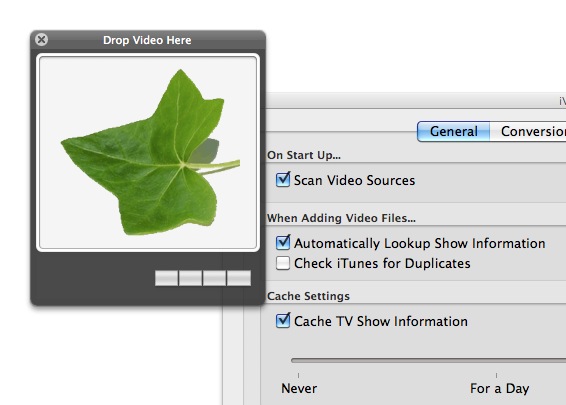
In order to convert a file you drag the file into the iVI Main Window (this has a message saying Drop Video Here). To start converting the file select it in the iVI Main Window and click the Convert button on the Toolbar. The file should vanish from this view and the Queue Window should appear. You should see your file again listed on the queue. When the conversion is complete then (by default) the file will be loaded into iTunes.
How to Enter the Serial Number for your iVI Pro Purchase...
I purchase iVI via the Store on the South Pole Website
If your purchased your license from the South Pole Webstore then you can enter the license manually into License Manger window (launched from under the iVI menu). Press the Edit button to type in the license and then press the Update button (far right) to confirm the changes. You need to ensure that all of the letters are capitalized and that the dash (-) marks are in place.
I'd like to Cut and Paste in a Serial Number I already have
In order to paste your license rather than type it in please try the following. Open the email containing your purchase receipt and locate your serial number. Highlight the serial number and right click. Select Copy. Now run iVI and select the iVI menu. Click on License Manager. Press the Edit button. Right click in the license entry box (now white) and press Paste. Press the left most (not the right most) Update button in the license manager.
Why are my files listed as Home Movies?
iVI understands three media types. TV Shows for television series, Movies for theater released movies and Home Movies for other types of movies, like those shot with a camcorder. If iVI can't determine if a file is a TV Show or Movie then it defaults to Home Movie. You can change this default setting on the General Tab of the Preferences window of iVI.
Detecting Movies or TV Shows
When a video file is detected in a Video Source or dropped onto iVI the first thing iVI will do is try to determine if this is a Movie, TV Show or Home Movie. It does this by first looking at the file name. If the name has a common format for TV Shows (Eureka.S01E05.HDTV.avi for example, iVI knows several others) it will assume the file is a TV Show and attempt to lookup the episode name and download the artwork etc. If the name doesn't look like a TV Show then iVI will consult the Internet to determine if it has a common movie name (The Empire Strikes Back.avi for example). If it does then iVI assumes it is a movie and will download the relevant description and artwork for that. If both of these fail then iVI will assume the file type is whatever default is set in Preferences (initially set as Home Movie). If iVI has missed something then in order to help iVI you should select the correct Media Type on iVI's main Video Files window. Once you've selected this make sure the Movie/Series name is more or less correct and press the LOOKUP button. iVI will now use the help you've provided to try and look the file up again. If there are a lot of close matches then iVI will show you a list to choose from.
What is a Video Source?
Video Sources are places iVI looks automatically for video files. You can add or remove a Video Source from iVI's preference window. These sources are checked when you press the Check Video Sources button on iVI's main window or at a time set by you on the Automate tab of iVI's preference window.
Why are the converted video files so large?
By default iVI creates videos files with a very high level of quality. You can easily change this to produce much smaller video files. Open iVI's preferences window and the select the Advanced tab. In this tab you can reduce the quality level of the video files which will reduce their size. You can adjust the quality level by reducing the birate used for SD or HD conversion. The lower the number the lower the quality, the higher the number the higher the quality. iVI will tell you as you move the quality level what a 'worst case' video file size will be so you can better judge where to move the setting.
iVI is Saying that I'm not Connected to the Internet but I am
iVI uses internet services like thetvdb.com, rageTV.com and IMDB to determine TV Show and Movie information. The most likely cause is that one of the services is offline and iVI can't connect to it.
iVI is pausing for 20-30 seconds when I drop a show or movie on it
iVI uses internet services like thetvdb.com, rageTV.com and IMDB to determine TV Show and Movie information. The most likely cause is that one of the services is offline and iVI can't connect to it.
Can you explain the Video Quality choices in iVI?
On the Conversion tab of iVI's Preferences there are four video quality choices Normal, High, Highest and iVI Original. The motion estimation algorithm and number of conversion passes increases from Normal thru High to Highest. Highest does a full two pass conversion of the video. If you select your devices on the Device tab in Preferences then iVI will ensure the video is playable on your devices no matter what quality setting you choose. iVI Original is the original conversion choice from the first version of iVI. This shouldn't be used for new conversions.
On the Advanced tab of iVI's preferences there are several additional choices for more advanced users. You can change the default bitrate for HD or SD conversions which will increase or decrease the file size and quality. Changing these settings may prevent iVI converted files from playing on certain Apple devices and so this is only recommended for users who understand these limits or for people using iVI for converting video for editing.
iVI isn't cleaning up it's conversion directory...
iVI uses the conversion directory as a cache for show information and images. This directory is cleaned out as specified in iVI's preferences on the General tab. If you hit the flush cache button it will clean the directory right away.
I don't allow iTunes to copy files to its media folder and use my own folders instead. How can iVI work for me?
No problem. On the Converted File tab in iVI's preferences change the Destination for Converted File drop down (there is one under each of the Home Movie, TV Shows and Movie tabs) to your preferred home for the final file. When you do this two new options will appear. Select the import into iTunes option and deselect the Delete option. Your files will now live in your prescribed directory and iTunes will point to that location.
After converting videos they show up in iTunes. However, when I try to play them I get the following message "The movie could not be used because the original file could not be found"
The most likely reason is that you have unselected the "Copy To iTunes Media Folder when importing to Library" option on the Advanced Tab of iTunes preferences. Oftentimes folks disable this when they want to maintain their video files in a different location. Open the iVI Preferences window (from the iVI menu or Setting button), select the Converted File Tab and on the tab for the media type you are converting (Home Movie, TV Shows or Movies) use the destination drop down to select the folder you'd like to keep your videos in. Then click the import into iTunes option and deselect the Delete Converted File option.
What is the difference between iVI and iVI Pro
iVI Pro and iVI both include most of features that iVI has to offer however due to App Store restrictions DVD Import is only currently available in iVI Pro. iVI is available on the Mac App Store and iVI Pro is purchased from our own store. We submit new versions of iVI Pro to Apple as iVI as they are developed but due to the App Store review process these are often at least one version behind iVI Pro. Also we are unable to fix bugs on iVI until the fix (no matter how small) has been through the same Apple review process. In contrast, with iVI Pro we control it's release and we will often be able to fix a bug on the day it's discovered and make that available to our customer base immediately. This process is the same for all App Store applications and isn't unique to iVI.
I have video from a camcorder and when I convert it the first two seconds of the video stutter or the audio and video seem wrong
Open Preferences (settings), select the General tab and turn on MTS Preprocess and MTS conversion will work.
How do I add metadata to files I've already converted without converting them again?
There are two ways to do this....
For an individual file you can load it into iVI, double click on the file, set up the metadata the way you like it and then press the Save Changes in Current File button.
In order to modify many files at once you first load the files into iVI. Then get the metadata set up for them - you can change multiple values at once by selecting all of the files and right clicking and selecting "Edit" or do a more detailed edit on each file individually. Then drop the HD/SD box down on the main window for each file and select Info Only (again you can do this for them all at once by selecting them all and right clicking and selecting Set Conversion Type>Info Only). Then when everything is ready press the Convert All button and the metadata will be applied to the list of files.
Keep in mind that the files will need to be of m4v or mp4 file type for metadata to be applied to them in this way. Other file types will need to be converted first.
How do I import a DVD using iVI?
Click on Tools in the Menu and select Import DVD or click Customize on the Toolbar and drag out the Import DVD button. Please note that DVD Import requires iVI Pro which is currently only available from our store.
How does PASS THRU/FAST mode work?
PASS THRU mode is a feature in iVI which can dramatically reduce conversion times.
When PASS THRU mode is on then a new column is shown in iVI. This column can have two values NO/FULL or YES/FAST.
YES/FAST means that the video will be copied between the source and destination file dramatically speeding up the conversion process.
NO/FULL means that the video will be converted as normal. Under NO/FULL is a short message explaining why FAST mode was't appropriate.
The messages are -
MB/s The source file has a higher bitrate than the maximum set for the selected devices on the Devices tab of Preferences
Ref Frms The source file is encoded with more References Frames than are supported for the selected devices on the Devices tab of Preferences
fps The source file is encoded with more frames per second than are supported for the selected devices on the Devices tab of Preferences
Unkn Ref The source file has an unknown number of Reference Frames and so suitability for PASS THRU can't be determined
Not h.264 The file isn't encoded in h.264 and so may not be compatible with Apple devices.
HD/SD Format PASS THRU is currently disabled for HD/SD conversions.
Width or Height The source file has a resolution which is too large for the selected devices on the Devices tab of Preferences
ATV1:(reason) The source file isn't supported by the Apple TV 1 which is selected as a device on Preferences>Devices. The encoding issue is also listed.
I can't hear any audio when I play back my converted video or DVD import
This issue is frequently caused when a video is converted with surround sound and then played back on a laptop (which often doesn't support surround sound). By default iVI will always create a stereo version of any surround sound so it will work on a laptop but you may need to select it in iTunes (or on the Apple TV, iPhone etc.) In iTunes you do this by clicking on the speech bubble and selecting the track you need. See below for an example...

iVI tries to start but crashes almost immediately
Please reset your iVI settings in one of the following ways -
1. Going to (your home folder)/Library/Preferences and deleting the file..
.. for iVI Pro called com.southpolesoftware.iVI_Pro.plist
.. for iVI called com.southpolesoftware.iVI.plist
In Lion this folder is hidden but you can open it by clicking on your desktop, selecting the Go menu, selecting Go To Folder and then entering ~/Library/Preferences
2. Or by entering the following command into the Terminal program.
For iVI please enter -
defaults delete com.southpolesoftware.iVI
For iVI Pro please enter -
defaults delete com.southpolesoftware.iVI_Pro
How can I change audio tracks or subtitles on my iPad or iPhone?
Press once on the screen of the playing video to make the video controls appear. On the left hand side of the control bar is a little speech bubble. Click the bubble to see a list of audio and subtitle tracks to select between.
Can iVI import SRT files automatically?
iVI will automatically import any srt file in the same directory as the source file with the same name (case insensitive).
For example /Users/Dave/lucas in love.srt will be imported into /Users/Dave/Lucas in Love.mkv during conversion
Languages can be encoded into the srt name For example /Users/Dave/lucas in love$English.srt will be imported into /Users/Dave/Lucas in Love.mkv as an English subtitle
Can I reorder the conversion Queue?
You can reorder the conversion queue by dragging shows up or down the Queue list. Shows closer to the top are converted first.
I can't find the license manager...
The License Manager is only required for iVI Pro and is not present in the Mac App Store version. Please download iVI Pro from our website which will accept the license.
Using custom locations for files after conversion and other Applescript Post Processing
An iVI user can write Applescript to perform almost any post processing on a file after conversion. To activate this feature go to the Conversion Tab of Preferences, select a customer folder for the converted file and then select Run Applescript Following Conversion and choose your script file. iVI will pass all useful parameters to the Applescript as shown in the example below....
on postconversion(finalpath, sourcepath, mediatype, moviename, episodename, seasonnumber, episodenumber, releasedate, genre)
display dialog "Destination Path:" & finalpath & (ASCII character 10) & (ASCII character 10) & "Source Path:" & sourcepath & (ASCII character 10) & (ASCII character 10) & "Media Type:" & mediatype
end postconversion
TV Show information look up isn't working on the App Store version of iVI
This was caused by a change in the servers at TVDB. We worked through the night and issued a fix within 24 hours for iVI Pro. We submitted the same fix to the Mac App Store on the same day. We have requested expedited processing from Apple but this has been ignored so far. It's a downside of buying an app from the App Store and we're doing everything we can to encourage Apple to release the fix. Trust us that we're as frustrated by this as you are.
In the meantime we've posted a fixed version of iVI you can download. There's a button for it on the main iVI page of this website or you can download directly from the link below....
How does iVI determine the file type?
iVI detects the information automatically. It does this as follows -
1) iVI looks for TV Show information in the file name. If it finds it then it determines it's a TV show and uses the filename for lookup from tvdb.com for show data and artwork. Here are the patterns iVI looks for in the file name...
s1e05 format (series 1, episode 5)
s1e5 format (series 1, episode 5)
s01e05 format (series 1, episode 5)
123 format (series 1, episode 23)
S01.E02 format (series 1, episode 2)
1234 format (series 12, episode 34)
1x23 format (series 1, episode 23)
10x23 format (series 10, episode 23)
2) iVI tries to look up the file name on moviedb.com. If it finds a match then it decides it's a movie and adds the data and art from moviedb.com
3) iVI decides the file is a home movie (or other default if changed in preferences) and labels it as such.
iVI isn't looking up Movie informtion..
The big data center crash at Amazon has taken down themoviedb.org which iVI uses for Movie information. We're hoping they bring it back up soon. We are also building in more choices in iVI 2.7 so you can vary your meta-data service if one is down.
How can I get the best quality when I use iVI to convert files for Video Editing?
If you're just using iVI for Video Conversion then you can get the best quality by doing the following -
- On the Conversion Tab of preferences set the Conversion Quality to Highest
- On the Conversion Tab of preferences turn on deinterlace
- On the Conversion Tab of preferences select Original Frame Rate (in iVI 3.0 and later)
- On the Conversion Tab of Preferences select "Keep original date modified time"
- On the Conversion Tab of Preferences select "Keep original file name"
- On the Conversion Tab of Preferences select "New files default to Original resolution"
Also if you're only planning on using iVI to get video into iMovie and don't care about having iVI make video for other devices then the biggest difference can be made by increasing the bitrate. You can do this on the advanced tab of preferences. Setting the bitrate to 10Mb/s (from the default of 3.5) will make a big jump in quality but also file size.
How can I see Actor, Producer, Director and Full Description for a show in iTunes?
iVI converted files work exactly the same way as a movie or TV show downloaded from iTunes. We did this so Actors, Directors and Producers and show descriptions now show correctly on the iPad and Apple TV. In order to see this information in iTunes add the description field to the list of columns shown. On the right hand side of this field is a white circle containing an i (for information). If you click that it shows the full long description, actors, producers etc for the show. I'm not sure why Apple hasn't added columns for these fields but so far they haven't. We changed the Artist field to show the director of the movie so that we matched exactly what you see when you download a movie from iTunes. By ensuring we're 100% the same as purchased content we hope to keep compatibility with future versions of Apple Hardware.
How can I import video into iMovie?
You easily import the m4v files iVI makes right into iMovie. To do so you can either use the iMovie menu and select File -> Import and select the files or more simply drag and drop them in. For some reason iMovie requires the m4v files to be dropped right into an event for this to work. See the image below for the right location to drop them.
How can I join parts of a video together?
Video Join is intended for linking together parts of a video that have been broken up. The parts all need to have an identical layout including the same number of audio and subtitle tracks and these must be in the same locations. Also all parts need to have the same video resolution and encoding. It's not designed to be used for linking separate videos like say a movie and a video extras.
In order to use Video Join drag the first part of the movie into the iVI main window. Double click on it to open the Video Information window and then select the Video Join tab. Now drag the other parts of the movie onto this tab. You can drag them to rearrange their order. Once they are ordered correctly close this window. Now just convert the movie as normal and the resulting file should contain the parts linked together.
iVI is changing my video from 16:9 / iVI is squashing my video
iVI can't always tell the correct aspect ratio but you can force it 16:9. You do this by double clicking the video in the iVI Main Window, selecting Audio & Video and then checking the Force 16:9 checkbox near the top right of the window.
You can also set up a rule to do this automatically on all future videos. To do this go to the Rules Tab of iVI's Preferences and create a rule along the lines of...
If filename contains .mod then change to 16:9 aspect ratio (use the correct file extension for your camera if not .mod)
then every file you add in the future will be forced to 16:9.
Why can't I turn off a DVD subtitle
DVDs store most of their subtitles as VobSub tracks. These tracks are images of the subtitles rather than the text. No Apple device or program other than DVD Player can see this kind of subtitle. iVI can create a Hard Subtitle for you by burning these images onto the final video but then that subtitle is always visible and can't be turned off.
Some DVDs also contain a closed caption track (CC) which is stored as text. iVI can turn this into a normal Soft Subtitle which can be turned on or off.
I'm dropping a file on iVI but it's not showing in the main iVI window
iVI checks the extension of a file name (the .mod or .mp4 bit at the end) in order to see if it's a file type that iVI knows it can convert. If it isn't a known extension then iVI will not accept the drop of the file. However, iVI can convert many more file types than we check and so if you're sure the file is a video file then you can add it to the list that iVI can accept. You do this by entering the extension on the General tab of iVI's preference in the Allow files with these additional extensions to be dropped on iVI box. Just type the extension of the file followed by a comma and it will be added to the list. Then you should be able to drop the file into iVI's main window.
iVI Pro isn't able to see the tracks on my DVD
If iVI Pro is having trouble reading the tracks on a DVD then please try turning on the Alternate DVD Import Method option on the General Tab of iVI's Preferences. It's slower but can sometimes detect tracks not found by the regular method.
What do the icons mean in the iVI main window?
The icons on a file shown in the iVI main window tell you if the file has chapter information, surround sound and/or subtitles contained within it.
The status icon shows one of the following conditions -
| OK | Indicating the file is loaded and ready for conversion |
| DU | Indicating iVI has detected a duplicate file already present in iTunes (based on TV Show series/season number or movie name) |
| DRM | Indicating iVI has detected DRM in the source file and will be unable to convert it |
| Spinning | Indicating iVI is looking up Meta-Data for the file |
What's the real technical difference between Normal, High and Highest as conversion quality settings?
Here's the details....
| Quality Setting | Motion Estimation | Subpixel Estimation | Reference Frames | Trellis Quantization | Number of Passes |
|---|---|---|---|---|---|
| Normal | hex | 6 | 2 | No | 1 |
| High | umh | 7 | 4 | Yes | 1 |
| Highest | hex | 7 | 4 | Yes | 2 |
Download iVI and make all of your video available on your Apple products today.....
DOWNLOAD
|
"iVI makes adding video files to your Mac iTunes library as simple as drag and drop..." - Frederick Van Johnson |

Designed For Mac
Designed for perfect operation on Intel based Mac OS X 10.5 or higher.